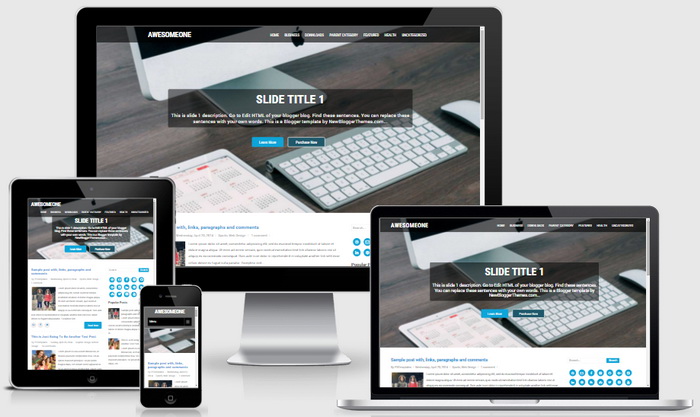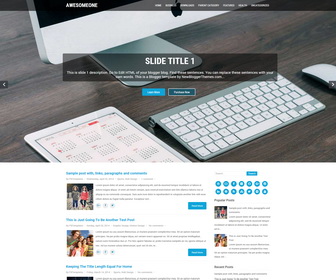
AwesomeOne theme is 100% responsive, 2 columns, corporate Blogger theme which can be useful for multipurpose industries. This theme can also be useful for business, blogging, photography, magazine, religious, portfolio, counselling, restro etc. AwesomeOne Blogger template has a beautiful full width slider, right sidebar, related posts with thumbnails, social buttons, top and bottom navigation menus, auto post summaries on homepage, web fonts, share buttons and more. This Blogger theme has created with the HTML5 and CSS3 and it is cross browser compatible with desktops, phones and tablets and runs very smoothly.
How To Configure Top Navigation Menu
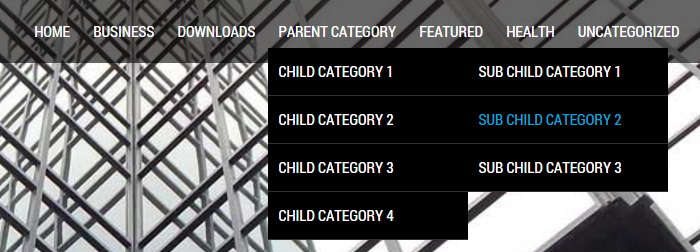
Find this in “Edit HTML”:
<ul class='menunbt'>

<li><a expr:href='data:blog.homepageUrl'>Home</a></li>

<li><a href='#'>Business</a>
<ul class='sub-menu'>
<li><a href='#'>Internet</a></li>
<li><a href='#'>Market</a></li>
<li><a href='#'>Stock</a></li>
</ul>
</li>

...

</ul>
Replace “#” marks with real URLs and change anchor texts as you like.
How To Configure Slider:
There are 3 slides in the slider. To change slider images find this and replace sample image URLs with yours:
<div class='nivoSlider' id='slidernbt'>
<img src='http://3.bp.blogspot.com/-iiNZO7c_hwA/Vl5rPcjHd6I/AAAAAAAAOTU/k39J0GFbR-I/s1600/slide-image-1.jpg' title='#slidecaption1'/>
<img src='http://2.bp.blogspot.com/-b9jnW00uhd8/Vl5rO6yFHmI/AAAAAAAAOTM/PYisl9xc4ok/s1600/slide-image-2.jpg' title='#slidecaption2'/>
<img src='http://3.bp.blogspot.com/-im0YKAlqpfY/Vl5rPUOVVYI/AAAAAAAAOTQ/hvJGdBZQouM/s1600/slide-image-3.jpg' title='#slidecaption3'/>
</div>
This is the code for first slide:
<!-- slide 1 code start -->
<div class='nivo-html-caption' id='slidecaption1'>
<div class='top-barnbt'>
	<h2>Slide Title 1</h2>
	<p>This is slide 1 description. Go to Edit HTML of your blogger blog. Find these sentences. You can replace these sentences with your own words. This is a Blogger template by NewBloggerThemes.com...</p>
	<a class='read-morenbt' href='#'>Learn More</a>
	<a class='common_btnnbt' href='1'>Purchase Now</a>
</div>
</div>
<!-- slide 1 code end -->
Change/replace the content as you like. This is same for next 2 slides.
How To Configure Social Buttons
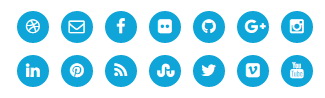
Find this in “Edit HTML”:
<div class='sidebar-social-icons'>
<ul>
	<li class='social-dribbble'><a href='#'><i class='fa fa-dribbble'/></a></li>
	<li class='social-email'><a href='#'><i class='fa fa-envelope-o'/></a></li>
	<li class='social-facebook'><a href='#'><i class='fa fa-facebook'/></a></li>
	<li class='social-flickr'><a href='#'><i class='fa fa-flickr'/></a></li>
	<li class='social-github'><a href='#'><i class='fa fa-github'/></a></li>
	<li class='social-gplus'><a href='#'><i class='fa fa-google-plus'/></a></li>
	<li class='social-instagram'><a href='#'><i class='fa fa-instagram'/></a></li>
	<li class='social-linkedin'><a href='#'><i class='fa fa-linkedin'/></a></li>
	<li class='social-pinterest'><a href='#'><i class='fa fa-pinterest'/></a></li>
	<li class='social-rss'><a href='#'><i class='fa fa-rss'/></a></li>
	<li class='social-stumbleupon'><a href='#'><i class='fa fa-stumbleupon'/></a></li>
	<li class='social-twitter'><a href='#'><i class='fa fa-twitter'/></a></li>
	<li class='social-vimeo'><a href='#'><i class='fa fa-vimeo-square'/></a></li>
	<li class='social-youtube'><a href='#'><i class='fa fa-youtube'/></a></li>
</ul>
</div>
Add your own social links replacing “#” marks.
How To Configure Bottom Navigation Menu

Go to “Layout”. Click on “Edit” link of “Edit This Menu” widget.
Now add your links to that link list widget.
https://newbloggerthemes.com/blog/how-to-configure-linklist-menu-widget/
AwesomeOne Blogger Template Responsive View