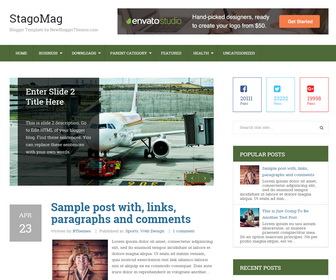
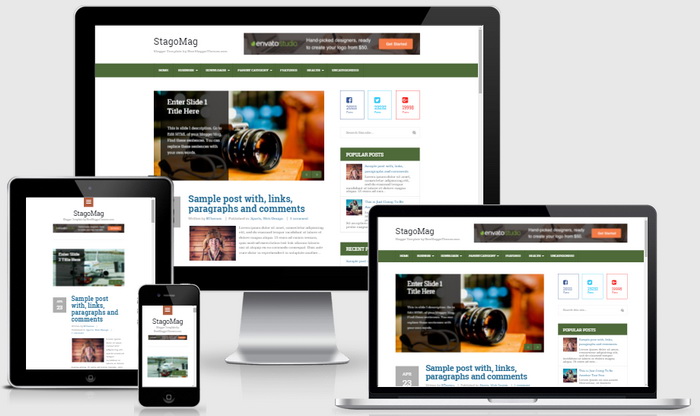
StagoMag is 100% responsive (mobile-ready) HTML5/CSS3, 2 columns blogger theme comes with a right sidebar and a 4 columns footer widgets section. StagoMag Blogger template has Google web fonts, mobile friendly navigation menus (top and bottom), related posts with thumbnails, social followers counter, social buttons, post share options, auto post summaries, font based icons and more features.
How To Configure Timestamp Format
If you haven’t configured “Timestamp Format” correctly, post dates are will be displayed as “undefined”. Follow this to fix it:
https://newbloggerthemes.com/blog/fix-posted-date-undefined-error-blogger/
How To Configure Top Navigation Menu
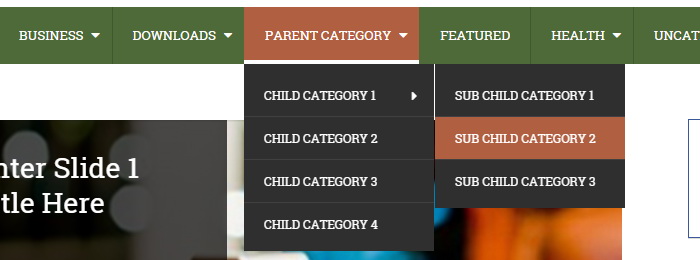
Find this in “Edit HTML”:
<ul class='menu-itemsnbt' id='menu-primary-items'>

<li><a expr:href='data:blog.homepageUrl'>Home</a></li>

<li class='menu-item-has-children'><a href='#'>Business</a>
<ul class='sub-menu'>
<li><a href='#'>Internet</a></li>
<li><a href='#'>Market</a></li>
<li><a href='#'>Stock</a></li>
</ul>
</li>

...

</ul>
Replace “#” marks with real URLs and change anchor texts as you like.
How To Configure Featured Content Slider:
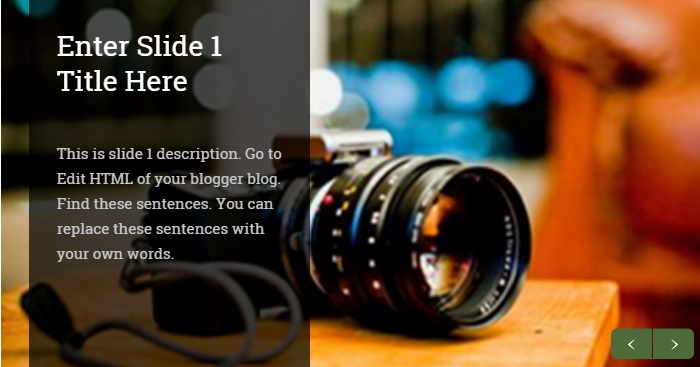
There are 3 slides in the slider. You can add or remove more slides if you want.
This is the code for the first slide:
<!-- slide 1 start-->
<li>
<article class='slidenbt'>
<a href='ENTER-SLIDE-1-LINK-HERE'><img src='https://3.bp.blogspot.com/-8uZFXjeAfTE/VtuJ7XYCljI/AAAAAAAARSA/gRh9edmPSvA/s1600/slide-1.jpg'/></a>
<div class='bx-caption'>
<h2 class='slider-titlenbt'><a href='ENTER-SLIDE-1-LINK-HERE'>Enter Slide 1 Title Here</a></h2>
<p>This is slide 1 description. Go to Edit HTML of your blogger blog. Find these sentences. You can replace these sentences with your own words.</p>
</div>
</article>
</li>
<!-- slide 1 end-->
Now replace,
“ENTER-SLIDE-1-LINK-HERE”s with your real slide link,
“Enter Slide 1 Title Here” with your real slide title,
“This is slide 1 description. Go to Edit HTML of your blogger blog. Find these sentences. You can replace these sentences with your own words.” with your real slide description,
“https://3.bp.blogspot.com/-8uZFXjeAfTE/VtuJ7XYCljI/AAAAAAAARSA/gRh9edmPSvA/s1600/slide-1.jpg” with your real slide image URL.
Do the same thing for next 2 slides.
How To Configure Social Followers Count
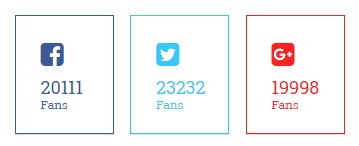
Find this:
<div class='widget swt_followers_number'>
<ul>

<!-- Facebook -->
<li>
<a class='swt-facebook' href='https://www.facebook.com/newbthemes/' rel='nofollow' target='_blank' title='Join us on Facebook!'>
<i class='fa fa-facebook-square'/>
<span class='f-socialnum'>20111</span>
<span class='swtfans'>Fans</span>
</a>
</li>

...

</ul>
</div>
Code is self-explanatory. Change social followers numbers and social profile URLs as you like.
How To Configure Social Buttons

Find this in “Edit HTML”:
<ul id='social-profilesnbt'>
<li><a class='fa fa-facebook' href='#' rel='nofollow' target='_blank' title='Facebook'/></li>
<li><a class='fa fa-twitter' href='#' rel='nofollow' target='_blank' title='Twitter'/></li>
<li><a class='fa fa-google-plus' href='#' rel='nofollow' target='_blank' title='Google Plus'/></li>
...
</ul>
Add your own social links replacing “#” marks.
How To Configure Footer Navigation Menu

Go to “Layout”. Click on “Edit” link of “Edit This Menu” widget.
Now add your links to that link list widget.
https://newbloggerthemes.com/blog/how-to-configure-linklist-menu-widget/
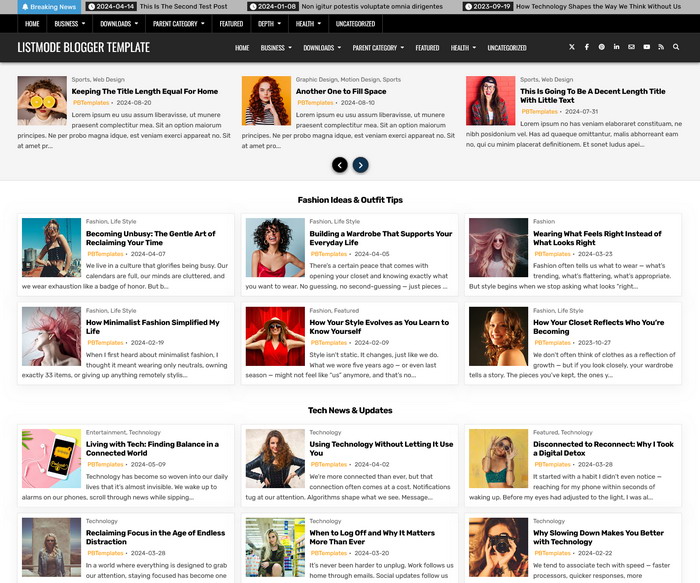
StagoMag Blogger Template Responsive View
Hello, the time stamp is not working for the posts. Also, how can I get this customized?
follow the instructions given above.
thanks you very much for the beautiful template….
Thank you much i got a super theme for my blog…
At the place of Month and Date (at left of each post), It is showing Undefined.
Why?
https://newbloggerthemes.com/blog/fix-posted-date-undefined-error-blogger/
thanks for the perfect theme, its very fast loading ,realy i got a reponsive theme for my blog