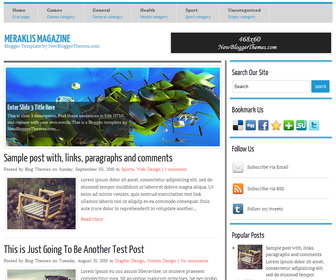
Meraklis Magazine is Clean 2 Columns, Magazine Blogger Template with Featured Content Slider, Navigation Menus, Social and Share Buttons, Right Sidebar and More Features.
How To Add Links to Top Navigation Menu
Find this in “Edit HTML”:
<div id='top'><!-- PAGE MENU, OR SECOND CUSTOM MENU -->
<ul class='sf-menu' id='menu-realdescription'>

<li><a href='#'><strong>Home</strong><span>First page</span></a></li>

<li><a href='#'><strong>Games</strong><span>Games category</span></a></li>

<li><a href='#'><strong>General</strong><span>General cateogry</span></a></li>

<li><a href='#'><strong>Health</strong><span>Health category</span></a></li>

<li><a href='#'><strong>Sport</strong><span>Sport category</span></a></li>

<li><a href='#'><strong>Uncategorized</strong><span>Empty category</span></a></li>

</ul>
</div><!-- END PAGE MENU -->
Replace “#” marks with real URLs and change anchor texts as you like.
How To Add Links to Bottom Navigation Menu
Go to “Layout”. Click on “Edit” link of “Edit This Menu” widget.
Now add your links to that link list widget.
How To Configure Featured Content Slider:
Find this in “Edit HTML”:
<div id='slider'>
<ul id='sliderContent'>

   <!-- slide 1 code start -->
   <li class='sliderImage'>
      <a href='ENTER-SLIDE-1-LINK-HERE'><img height='230' src='http://1.bp.blogspot.com/-kjzi3YKdrto/Ur92F8stxUI/AAAAAAAAJ1g/6mdGCCg6t3s/s1600/slide-image-1.jpg' width='625'/></a>
      <span class='bottom'>
         <h2><a href='ENTER-SLIDE-1-LINK-HERE'>Enter Slide 1 Title Here</a></h2>
         <p>This is slide 1 description. Find these sentences in Edit HTML and replace with your own words. This is a Blogger template by NewBloggerThemes.com...</p>
      </span>
   </li>
   <!-- slide 1 code end -->

   <!-- slide 2 code start -->
   <li class='sliderImage'>
      <a href='ENTER-SLIDE-2-LINK-HERE'><img height='230' src='http://4.bp.blogspot.com/-VCxS4zHEXcI/Ur92D0In6dI/AAAAAAAAJ1Q/h_SMi-6sXhk/s1600/slide-image-2.jpg' width='625'/></a>
      <span class='bottom'>
         <h2><a href='ENTER-SLIDE-2-LINK-HERE'>Enter Slide 2 Title Here</a></h2>
         <p>This is slide 2 description. Find these sentences in Edit HTML and replace with your own words. This is a Blogger template by NewBloggerThemes.com...</p>
      </span>
   </li>
   <!-- slide 2 code end -->

   <!-- slide 3 code start -->
   <li class='sliderImage'>
      <a href='ENTER-SLIDE-3-LINK-HERE'><img height='230' src='http://4.bp.blogspot.com/-yNVpgD2lD-A/Ur92EwVIadI/AAAAAAAAJ1Y/hP0nAM06ptg/s1600/slide-image-3.jpg' width='625'/></a>
      <span class='bottom'>
         <h2><a href='ENTER-SLIDE-3-LINK-HERE'>Enter Slide 3 Title Here</a></h2>
         <p>This is slide 3 description. Find these sentences in Edit HTML and replace with your own words. This is a Blogger template by NewBloggerThemes.com...</p>
      </span>
   </li>
   <!-- slide 3 code end -->

   <div class='clear sliderImage'/>
</ul>
</div>
<!-- // slider -->
There are 3 slides in the slider. You can add or remove more slides if you want.
Now replace,
“ENTER-SLIDE-X-LINK-HERE”s with your real slide link,
“Enter Slide X Title Here” with your real slide title,
“This is slide X description. Find these sentences in Edit HTML and replace with your own words. This is a Blogger template by NewBloggerThemes.com…” with your real slide description,
Slide image URL,
for each slide. (X = 1 or X = 2 or X = 3)
How To Configure Sidebar Social Buttons
Find this in “Edit HTML”:
<div class='side-widget'>
<h3>Follow Us</h3>
<ul id='topsoc'>
<li class='first'>
   <a href='#' id='email'>Subscribe via Email</a>
</li>
<li class='second'>
   <a href='#' id='socrss'>Subscribe via RSS</a>
</li>
<li class='third'>
   <a href='#' id='twitter'>Follow my tweets</a>
</li>
</ul>
</div>
Add your own social links replacing “#” marks.
How To Configure Footer Social Buttons
Find this in “Edit HTML”:
<ul id='botsoc'>
<li>
<a href='#'><img alt='We on Last FM' class='lastfm' src='http://3.bp.blogspot.com/-L9OE7HLIpdg/Ur9106GwbdI/AAAAAAAAJzs/ilBHUmrVpHY/s1600/lastfm.png'/></a>
</li>
<li>
<a href='#'><img alt='We on Youtube' class='youtube' src='http://1.bp.blogspot.com/-t4BIpH1IHIQ/Ur915Nx5maI/AAAAAAAAJ04/paNLXP34B5U/s1600/youtube.png'/></a>
</li>
<li>
<a href='#'><img alt='We on Linkedin' class='linkedin' src='http://4.bp.blogspot.com/-yEWu4GisxyY/Ur911AyjSuI/AAAAAAAAJzo/VRLuvPnAgtw/s1600/linkedin.png'/></a>
</li>
<li>
<a href='#'><img alt='We on Flickr' class='flickrim' src='http://1.bp.blogspot.com/-m2mStD8LsgI/Ur91zCHKjaI/AAAAAAAAJy8/VBCFPBtL1ow/s1600/flickr.png'/></a>
</li>
</ul>
Add your own social links replacing “#” marks.
Nice Template
Good work.
Thanks …may i take it…?