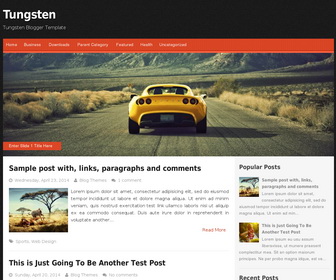
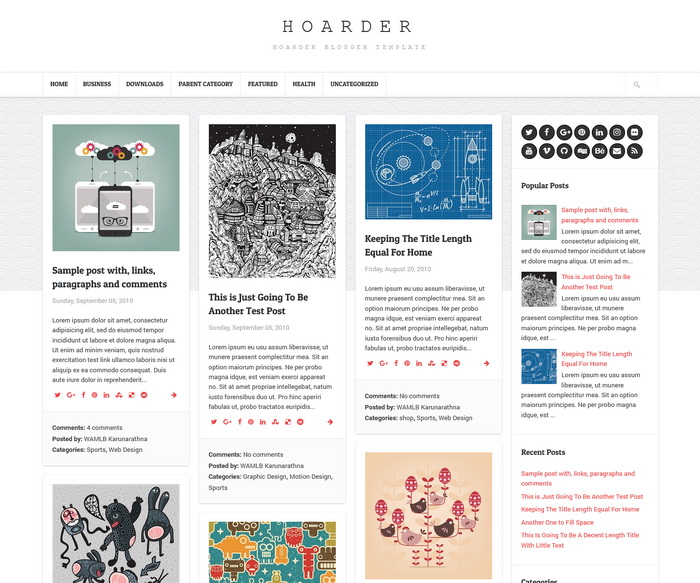
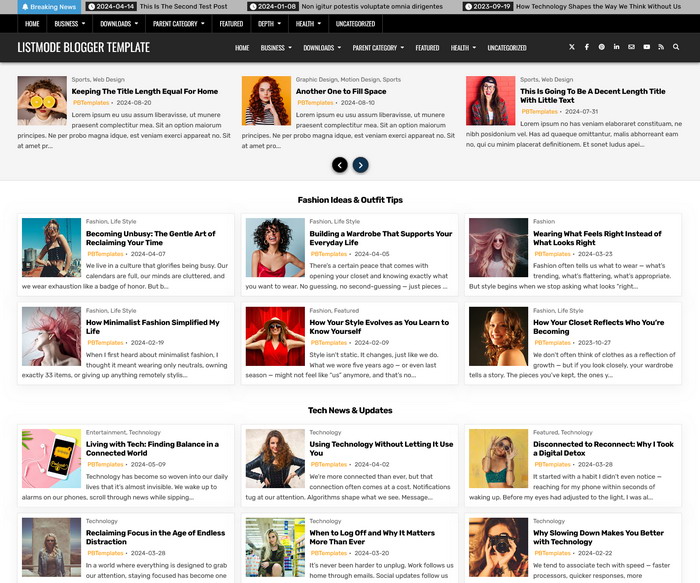
Tungsten is a 2 columns, magazine, fully responsive Blogger template with a warm color scheme. It has two skins, red and blue. You can upload preferred version to Blogger. Tungsten Blogger template has a featured content slider, drop-down navigation menu, social buttons, right sidebar and more features.
How To Add Links to Top Navigation Menu
Find this in “Edit HTML”:
<div class='menu-testing-menu-container'>
<ul id='menu-testing-menu'>

<li><a expr:href='data:blog.homepageUrl'>Home</a></li>

<li><a href='#'>Business</a>
<ul class='children'>
<li><a href='#'>Internet</a></li>
<li><a href='#'>Market</a></li>
<li><a href='#'>Stock</a></li>
</ul>
</li>

<li><a href='#'>Downloads</a>
<ul class='children'>
<li><a href='#'>Dvd</a></li>
<li><a href='#'>Games</a></li>
<li><a href='#'>Software</a>
<ul class='children'>
<li><a href='#'>Office</a>
</li>
</ul>
</li>
</ul>
</li>

<li><a href='#'>Parent Category</a>
<ul class='children'>
<li><a href='#'>Child Category 1</a>
<ul class='children'>
<li><a href='#'>Sub Child Category 1</a></li>
<li><a href='#'>Sub Child Category 2</a></li>
<li><a href='#'>Sub Child Category 3</a></li>
</ul>
</li>
<li><a href='#'>Child Category 2</a></li>
<li><a href='#'>Child Category 3</a></li>
<li><a href='#'>Child Category 4</a></li>
</ul>
</li>

<li><a href='#'>Featured</a></li>

<li><a href='#'>Health</a>
<ul class='children'>
<li><a href='#'>Childcare</a></li>
<li><a href='#'>Doctors</a></li>
</ul>
</li>

<li><a href='#'>Uncategorized</a></li>

</ul>
</div>
Replace “#” marks with real URLs and change anchor texts as you like.
How To Configure Social Buttons
Find this in “Edit HTML”:
<ul>
   <li class='soc_fb'><a href='#' rel='nofollow' target='_blank' title='Facebook'><i class='fa fa-facebook-square'/></a></li>
   <li class='soc_tw'><a href='#' rel='nofollow' target='_blank' title='Twitter'><i class='fa fa-twitter-square'/></a></li>
   <li class='soc_plus'><a href='#' rel='nofollow' target='_blank' title='Google Plus'><i class='fa fa-google-plus-square'/></a></li>
   <li class='soc_pinterest'><a href='#' rel='nofollow' target='_blank' title='Pinterest'><i class='fa fa-pinterest-square'/></a></li>
   <li class='soc_linkedin'><a href='#' rel='nofollow' target='_blank' title='LinkedIn'><i class='fa fa-linkedin-square'/></a></li>
   <li class='soc_rss'><a href='#' rel='nofollow' target='_blank' title='RSS'><i class='fa fa-rss-square'/></a></li>
</ul>
Add your own social links replacing “#” marks.
How To Configure Featured Content Slider:
Find this in “Edit HTML”:
<ul class='rslides'>

   <!-- slide 1 code started -->
   <li>
      <a href='ENTER-SLIDE-1-LINK-HERE'><img src='http://2.bp.blogspot.com/-Lj_EWl7uACo/U5VpqUS0XRI/AAAAAAAAKIU/FtP1qCFTUK4/s1600/slider-image-1.jpg'/></a>
      <p class='caption'>Enter Slide 1 Title Here</p>
   </li>
   <!-- slide 1 code end -->

   <!-- slide 2 code started -->
   <li>
      <a href='ENTER-SLIDE-2-LINK-HERE'><img src='http://3.bp.blogspot.com/-MVhttOlANs8/U5VpratlDsI/AAAAAAAAKIc/0J_Fwr0fucQ/s1600/slider-image-2.jpg'/></a>
      <p class='caption'>Enter Slide 2 Title Here</p>
   </li>
   <!-- slide 2 code end -->

   <!-- slide 3 code started -->
   <li>
      <a href='ENTER-SLIDE-3-LINK-HERE'><img src='http://4.bp.blogspot.com/-lpNauXwjptM/U5VptFChJdI/AAAAAAAAKIk/SYZpZnpRYqg/s1600/slider-image-3.jpg'/></a>
      <p class='caption'>Enter Slide 3 Title Here</p>
   </li>
   <!-- slide 3 code end -->

</ul>
There are 3 slides in the slider. You can add or remove more slides if you want.
Now replace,
“ENTER-SLIDE-X-LINK-HERE”s with your real slide link,
“Enter Slide X Title Here” with your real slide title,
Slide image URL,
for each slide. (X = 1 or X = 2 or X = 3)
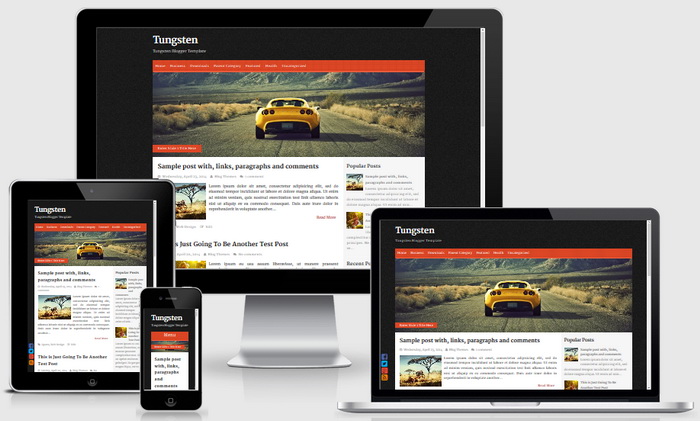
Tungsten Blogger Template Responsive View:
Great ! Thanks !
Wonderful theme
I have importes this theme to blogger but comments is not working.
Please, can you give me advise how to fix it? Thanx
I did it. Never mind
How to change the social icons?
Thanks!
Hi, haven't you read the instructions given above?