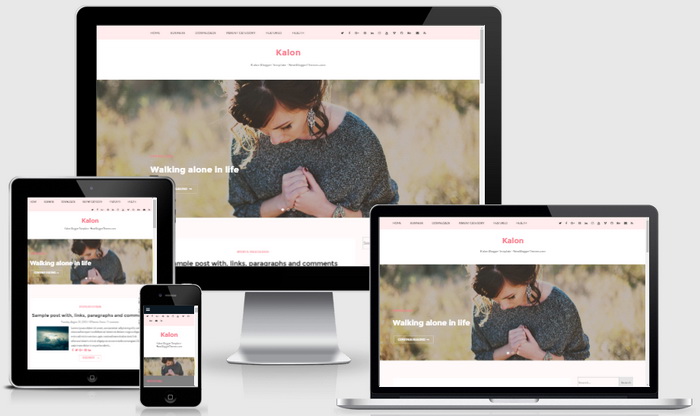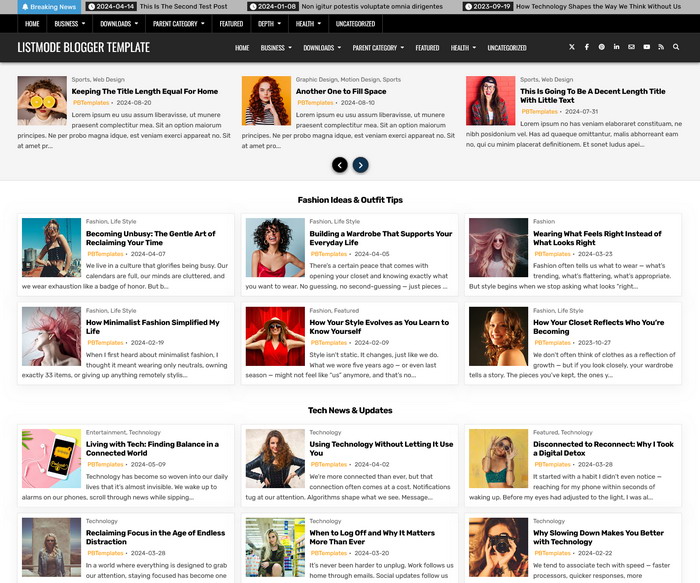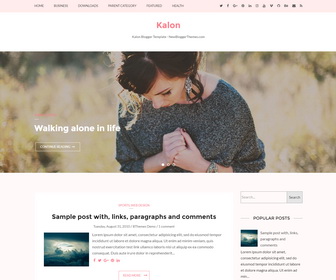
Kalon is a fully responsive, clean and elegant, 2 columns Blogger theme for blog and magazine. It is created using HTML5, CSS3 and has a featured slider, auto read more, right sidebar, 3 columns footer widgets, top drop-down navigation, header social buttons, related posts with thumbnails, share icons, web fonts and more.
How To Configure Top Navigation Menu
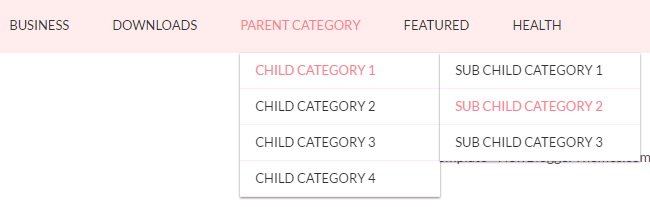
Find this in “Edit HTML”:
<div class='menu-primary-containernbt'>
<ul id='menu-primarynbt'>

<li><a expr:href='data:blog.homepageUrl'>Home</a></li>

<li><a href='#'>Business</a>
<ul class='sub-menu'>
<li><a href='#'>Internet</a></li>
<li><a href='#'>Market</a></li>
<li><a href='#'>Stock</a></li>
</ul>
</li>

...

</ul>
</div>
Replace “#” marks with real URLs and change anchor texts as you like.
How To Configure Social Buttons

Find this in “Edit HTML”:
<ul class='social-networksnbt'>
<li><a href='https://twitter.com/' rel='nofollow' target='_blank' title='Twitter'><i class='fa fa-twitter'/></a></li>
<li><a href='https://www.facebook.com/' rel='nofollow' target='_blank' title='Facebook'><i class='fa fa-facebook'/></a></li>
<li><a href='https://plus.google.com/' rel='nofollow' target='_blank' title='GooglePlus'><i class='fa fa-google-plus'/></a></li>
...
</ul>
Add your social profile links replacing default social profile URLs.
How To Configure Featured Content Slider

There are 3 slides in the slider. You can add or remove more slides if you want.
Find this in “Edit HTML” (This is the code for the first slide):
<li>
<img src='https://2.bp.blogspot.com/-6bFNRXguNAo/V4rd3nz_j7I/AAAAAAAASuw/pQgKufbHIsQk9CFQN3W9Z4eCO90D8oHUACLcB/s1600/slider-image-1.jpg'/>
<div class='banner-text'>
<div class='containernbt'>
<div class='textnbt'>
<span class='categorynbt'><a href='ENTER-SLIDE-1-CATEGORY-LINK-HERE'>Inspirational</a></span>
<h2>Walking alone in life</h2>
<a class='read-morenbt' href='ENTER-SLIDE-1-LINK-HERE'>Continue Reading</a>
</div>
</div>
</div>
</li>
Now replace,
“ENTER-SLIDE-1-LINK-HERE” with the URL need to go when someone click on the slide,
“ENTER-SLIDE-1-CATEGORY-LINK-HERE” with the category URL this slide post belongs,
“Inspirational” with the category name this slide post belongs,
“Walking alone in life” with your slide image URL.
Follow the same procedure for next 2 slides.
Kalon Blogger Template Responsive View