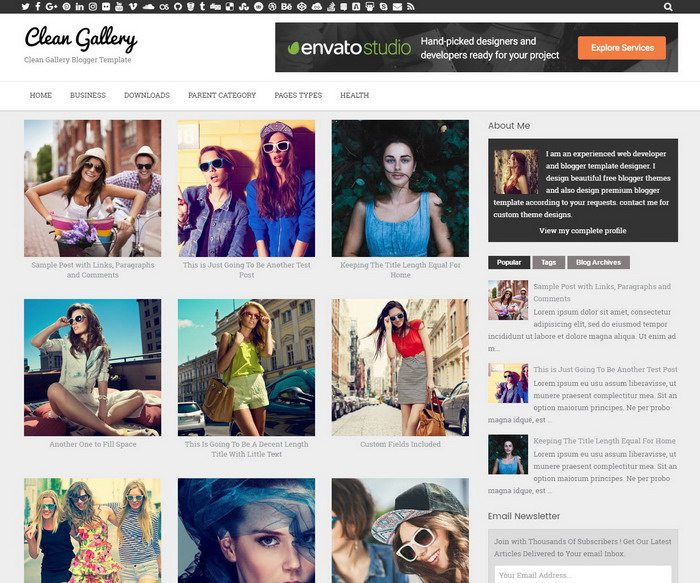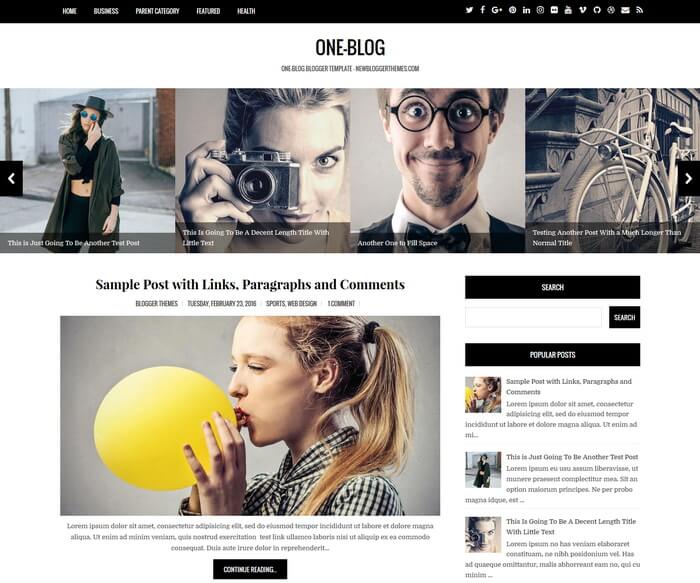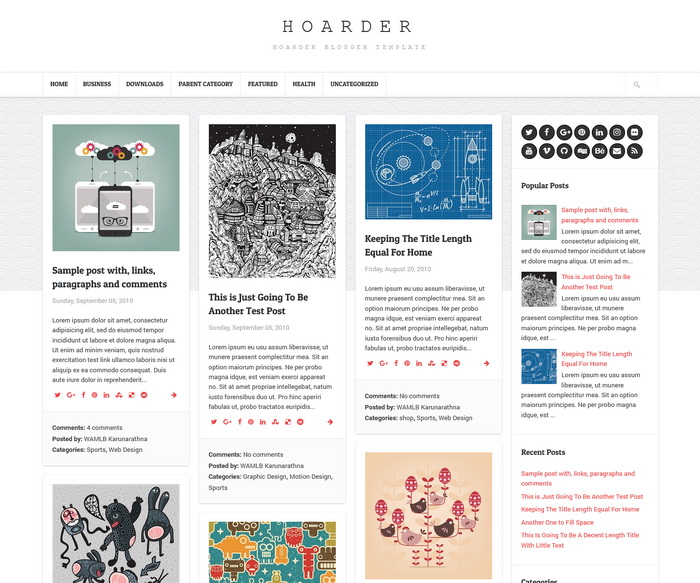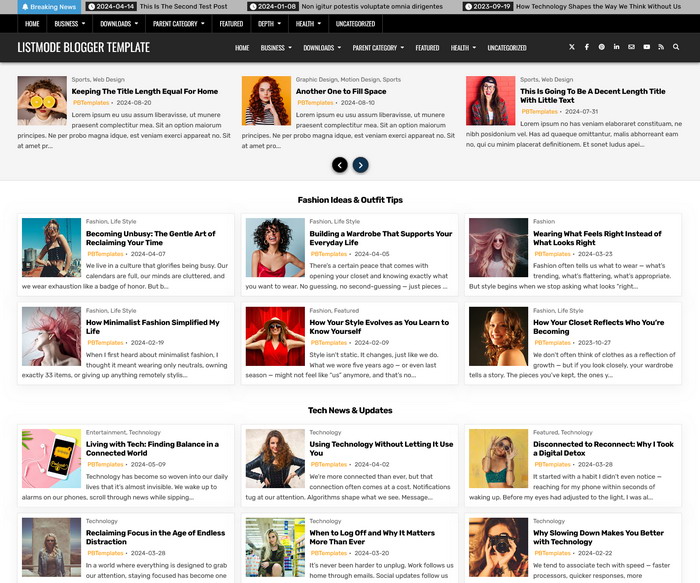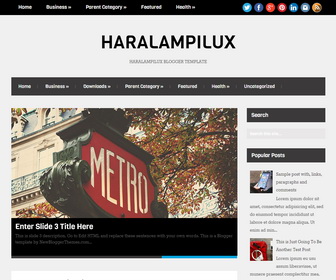
HaralampiLux is a clean, 2 columns blogger template with a right sidebar and 4 columns footer widgets area. HaralampiLux blogger template has 2 top main navigation menus, content slider, related posts with thumbnails, share icons, auto post summaries, web fonts and more.
How To Configure Primary Navigation Menu
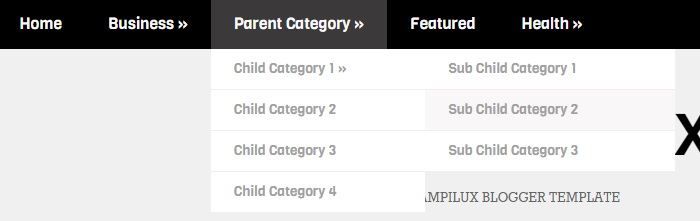
Find this in “Edit HTML”:
<ul id='menu-primary-items'>

<li><a expr:href='data:blog.homepageUrl'>Home</a></li>

<li><a href='#'>Business</a>
<ul class='sub-menu'>
<li><a href='#'>Internet</a></li>
<li><a href='#'>Market</a></li>
<li><a href='#'>Stock</a></li>
</ul>
</li>

...

</ul>
Replace “#” marks with real URLs and change anchor texts as you like.
How To Configure Social Buttons

Find this in “Edit HTML”:
<ul id='socialnbt'> <li><a href='https://twitter.com/' id='twitternbt' title='Twitter'/></li> <li><a href='https://www.facebook.com/' id='facebooknbt' title='Facebook'/></li> <li><a href='https://plus.google.com/' id='googleplusnbt' title='Google Plus'/></li> <li><a href='https://www.pinterest.com/' id='pinterestnbt' title='Pinterest'/></li> <li><a href='https://www.linkedin.com/' id='linkedinnbt' title='Linkedin'/></li> <li><a href='https://www.instagram.com/' id='instagramnbt' title='Instagram'/></li> <li><a expr:href='data:blog.homepageUrl + "feeds/posts/default"' id='rssnbt' title='RSS'/></li> </ul>
Add your social profile links replacing default social profile URLs.
How To Configure Secondary Navigation Menu
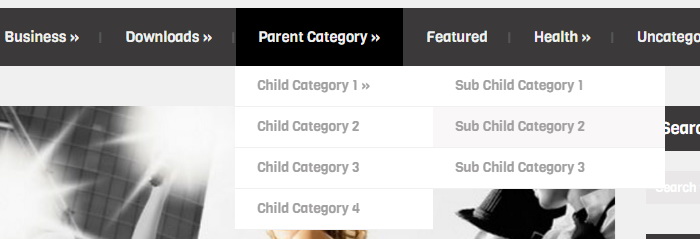
Find this in “Edit HTML”:
<ul id='menu-secondary-items'>

<li><a expr:href='data:blog.homepageUrl'>Home</a></li>

<li><a href='#'>Business</a>
<ul class='sub-menu'>
<li><a href='#'>Internet</a></li>
<li><a href='#'>Market</a></li>
<li><a href='#'>Stock</a></li>
</ul>
</li>

...

</ul>
Replace “#” marks with real URLs and change anchor texts as you like.
How To Configure Featured Content Slider:
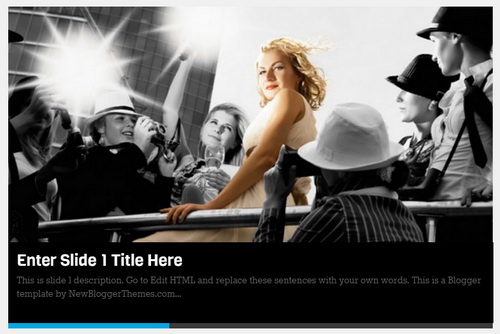
There are 3 slides in the slider. This is the code for the first slide.
Find this in “Edit HTML”:
<!-- slide 1 -->
<li>
<a href='ENTER-SLIDE-1-LINK-HERE'><img src='https://2.bp.blogspot.com/-0M8tOnNCiWE/V5hMvSAQJUI/AAAAAAAAOL4/X25zUQRqLDIcHK9gQ1021iFotBB2pnhaQCLcB/s1600/slide-image-1.jpg'/></a>
<div class='flex-caption'>
<h3 class='flex-title'><a href='ENTER-SLIDE-1-LINK-HERE'>Enter Slide 1 Title Here</a></h3>
This is slide 1 description. Go to Edit HTML and replace these sentences with your own words. This is a Blogger template by NewBloggerThemes.com...
</div>
</li>
Now replace,
“ENTER-SLIDE-1-LINK-HERE”s with your real slide link,
“Enter Slide 1 Title Here” with your real slide title,
“This is slide 1 description. Go to Edit HTML and replace these sentences with your own words. This is a Blogger template by NewBloggerThemes.com…” with your real slide description,
“https://2.bp.blogspot.com/-0M8tOnNCiWE/V5hMvSAQJUI/AAAAAAAAOL4/X25zUQRqLDIcHK9gQ1021iFotBB2pnhaQCLcB/s1600/slide-image-1.jpg” with your slide image URL.
Follow same steps for other 2 slides.