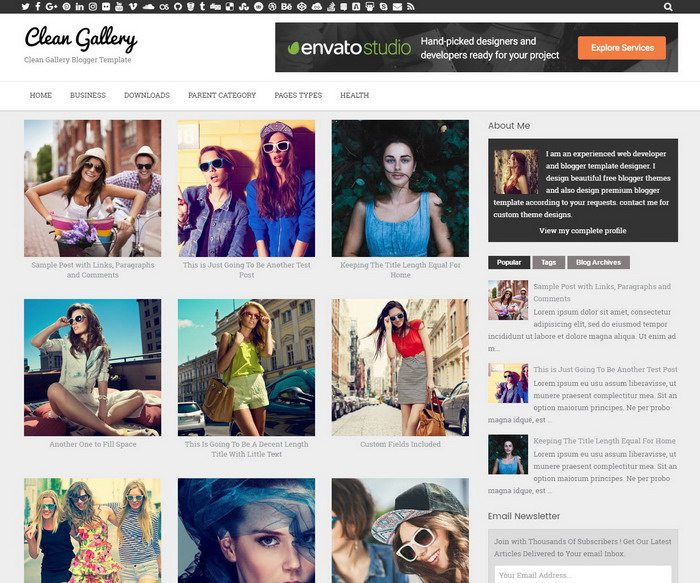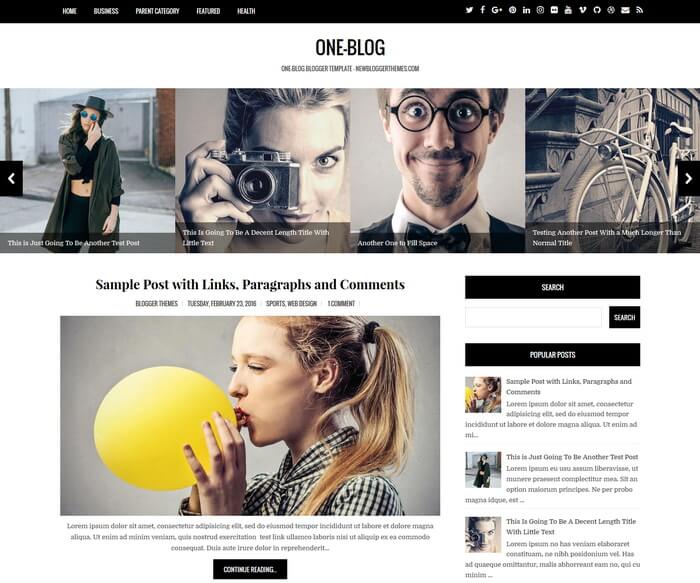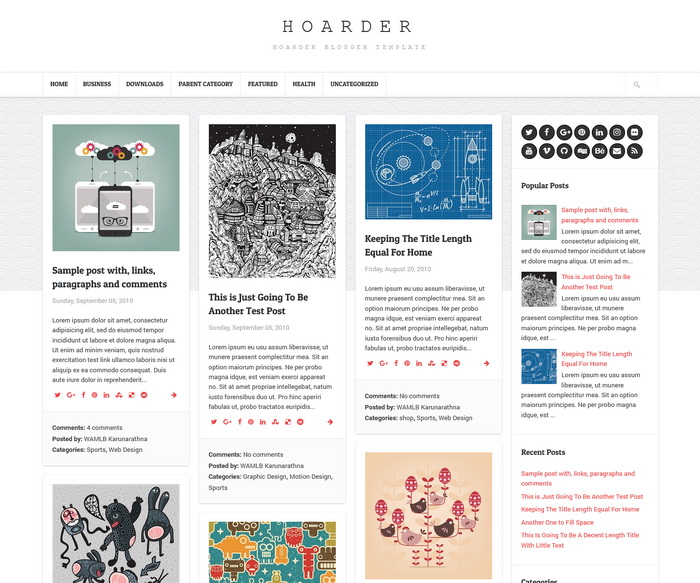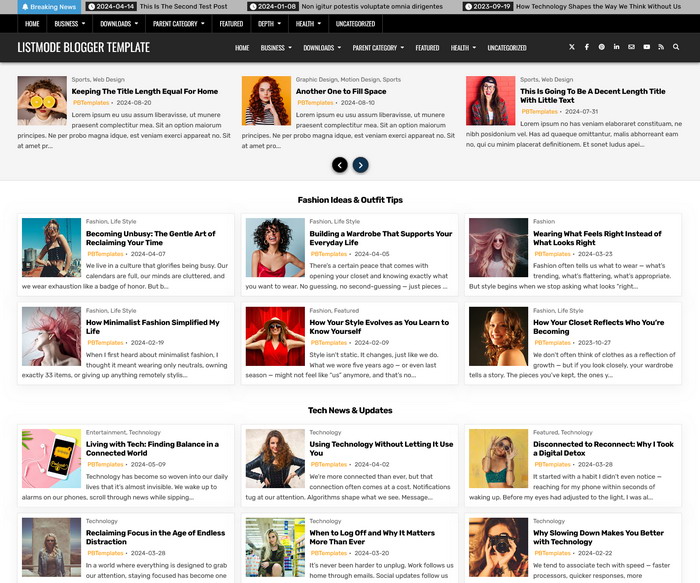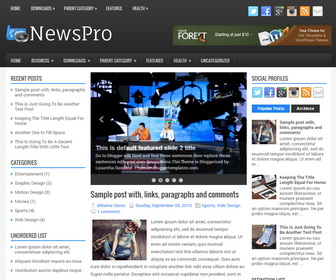
NewsPro is a 100% responsive, 3 columns blogger template with left and right sidebars and 3 columns footer widgets area. NewsPro Blogger template has a featured post slider, primary and secondary navigation menus, auto post summaries, social and share buttons, Google web fonts, header banner widget, related posts with thumbnails and more.
How To Configure Primary Navigation Menu
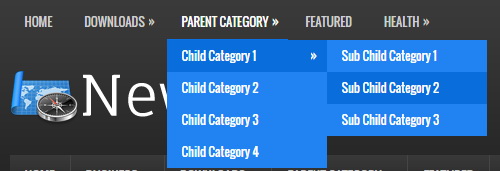
Find this in “Edit HTML”:
<div class='menu-primary-container'>
<ul class='menus menu-primary'>

<li><a expr:href='data:blog.homepageUrl'>Home</a></li>

<li><a href='#'>Downloads</a>
<ul class='children'>
<li><a href='#'>Dvd</a></li>
<li><a href='#'>Games</a></li>
<li><a href='#'>Software</a>
<ul class='children'>
<li><a href='#'>Office</a>
</li>
</ul>
</li>
</ul>
</li>

...

</ul>
</div>
Replace “#” marks with real URLs and change anchor texts as you like.
How To Configure Secondary Navigation Menu
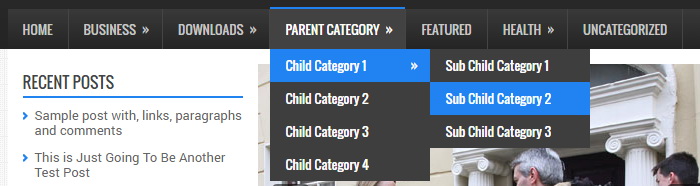
Find this in “Edit HTML”:
<div class='menu-secondary-container'>
<ul class='menus menu-secondary'>

<li><a expr:href='data:blog.homepageUrl'>Home</a></li>

<li><a href='#'>Business</a>
<ul class='children'>
<li><a href='#'>Internet</a></li>
<li><a href='#'>Market</a></li>
<li><a href='#'>Stock</a></li>
</ul>
</li>

...

</ul>
</div>
Replace “#” marks with real URLs and change anchor texts as you like.
How To Configure Featured Content Slider:
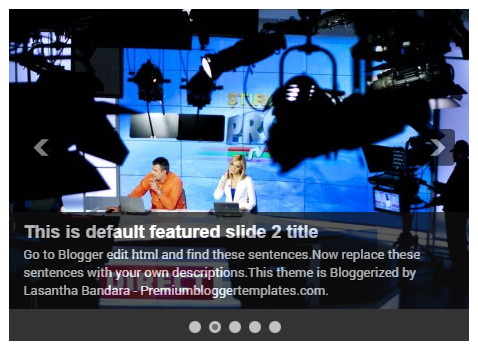
There are 5 slides in the slider. Each slide code is wrapped by <div class=’fp-slides-items’> and </div>. This is the code of the first slide:
<!-- Slide 1 Code Start -->
<div class='fp-slides-items'>
<div class='fp-thumbnail'>
<a href='#'><img src='https://3.bp.blogspot.com/--UHa_rmm7B0/V7CQzRjgHGI/AAAAAAAAOaw/qMYZ2cwmKnQB6l0db4BRDsvd0eLuTXg0QCLcB/s1600/1.jpg'/></a>
</div>
<div class='fp-content-wrap'>
<div class='fp-content'>
<h3 class='fp-title'>
<a href='#'>This is default featured slide 1 title</a>
</h3>
<p>
Go to Blogger edit html and find these sentences.Now replace these sentences with your own descriptions.This theme is Bloggerized by Lasantha Bandara - Premiumbloggertemplates.com.
</p>
</div>
<div class='fp-prev-next-wrap clearfix'>
    <a class='fp-next' href='#fp-next'/>
    <a class='fp-prev' href='#fp-prev'/>
</div>
</div>
</div>
<!-- Slide 1 Code End -->
Now replace,
“This is default featured slide 1 title” with your featured post title.
“#” mark with your featured post URL.
“Go to Blogger edit html and find these sentences.Now replace these sentences with your own descriptions.This theme is Bloggerized by Lasantha Bandara – Premiumbloggertemplates.com.” with your description.
“https://3.bp.blogspot.com/–UHa_rmm7B0/V7CQzRjgHGI/AAAAAAAAOaw/qMYZ2cwmKnQB6l0db4BRDsvd0eLuTXg0QCLcB/s1600/1.jpg” with your slider image.
There are another 4 slide codes you have to configure like this.